A DAC (digital-to-analog converter) can be the quickest way to noticeably improve sound from a TV, computer, or phone.
This beginner-friendly guide explains when you need a DAC, how to connect it to your amplifier, which cables to use,
and simple setup checks so you get clean, distortion-free sound.
What is a DAC?
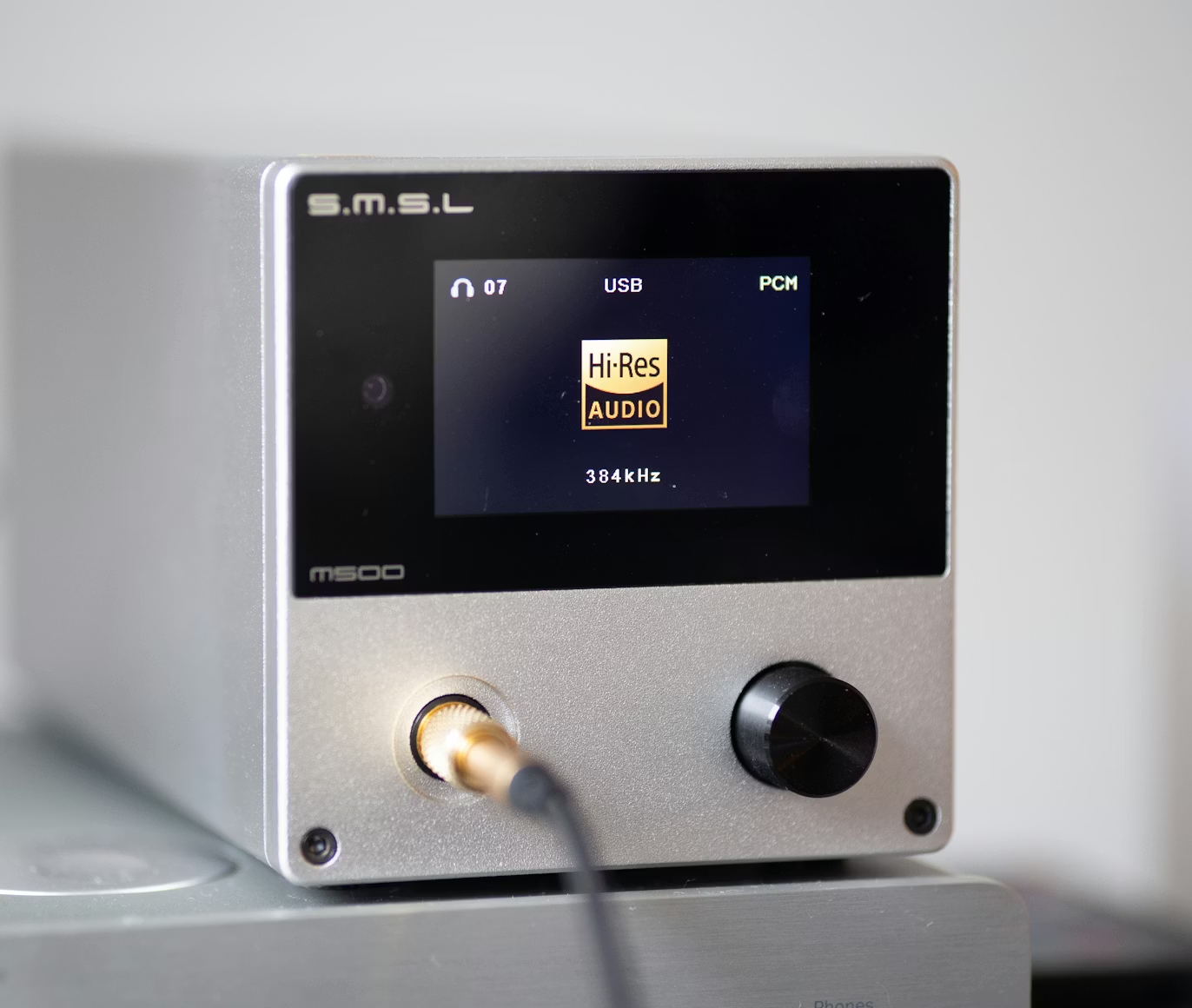
A DAC (digital-to-analog converter) converts digital audio (USB, optical, coax) into analog signals that your amplifier can use. Many modern sources (phones, laptops, TVs) use built-in DACs — but a standalone DAC can offer better clarity, lower noise, and support for hi-res formats.
If you’re trying to figure out how to use a DAC with an amplifier, the signal chain is simpler than most beginners expect: the DAC converts digital audio into clean analog output, and your amplifier boosts that signal to power your speakers.
When you need a DAC
Consider a DAC if:
- Your source device has a weak or noisy headphone output (laptop/phone)
- Your TV lacks high-quality analog outputs and you want better clarity
- You use high-resolution music files or a dedicated music PC
DAC to Amplifier Connection Diagram (Simple Explanation)
The basic audio chain looks like this:
Source → DAC → Amplifier → Speakers
Your source device (TV, PC, phone) sends digital audio to the DAC through USB, optical, or coaxial. The DAC converts that signal to analog and sends it to your amplifier’s line input. The amplifier boosts the signal and drives your speakers. Keep cable runs short and avoid routing analog cables near power supplies.
Step-by-step: connect a DAC to an amplifier
Step 1 — Check the outputs and inputs
Identify the digital output on your source (USB, optical/TOSLINK, coaxial) and the analog input on your amplifier (RCA, 1/4″ TRS). Most budget amps accept RCA unbalanced inputs — if your amp only has speaker-level inputs, you’ll need a preamp or an integrated amp with line inputs.
Step 2 — Choose the right cable (USB / Optical / Coax)
Use USB for desktop/laptop sources (better for hi-res and stable sample rates). Use optical/coax for TVs and devices with digital audio out. Avoid cheap Toslink cables — get a decent cable without overpaying. After connecting, set your source to output via the chosen digital port.
USB vs Optical vs Coaxial — Which Should You Choose?
| Connection Type | Best For | Pros | Cons |
|---|---|---|---|
| USB | PCs / laptops | Best resolution; stable clocking | Can introduce ground-loop noise in some setups |
| Optical (TOSLINK) | TVs / consoles | Fully isolated (no electrical noise) | Sample-rate limited on some TVs |
| Coaxial | CD players / streamers | Stable digital connection; warm-toned | Needs an RCA coax cable |
Step 3 — Connect DAC to amplifier (RCA / balanced)
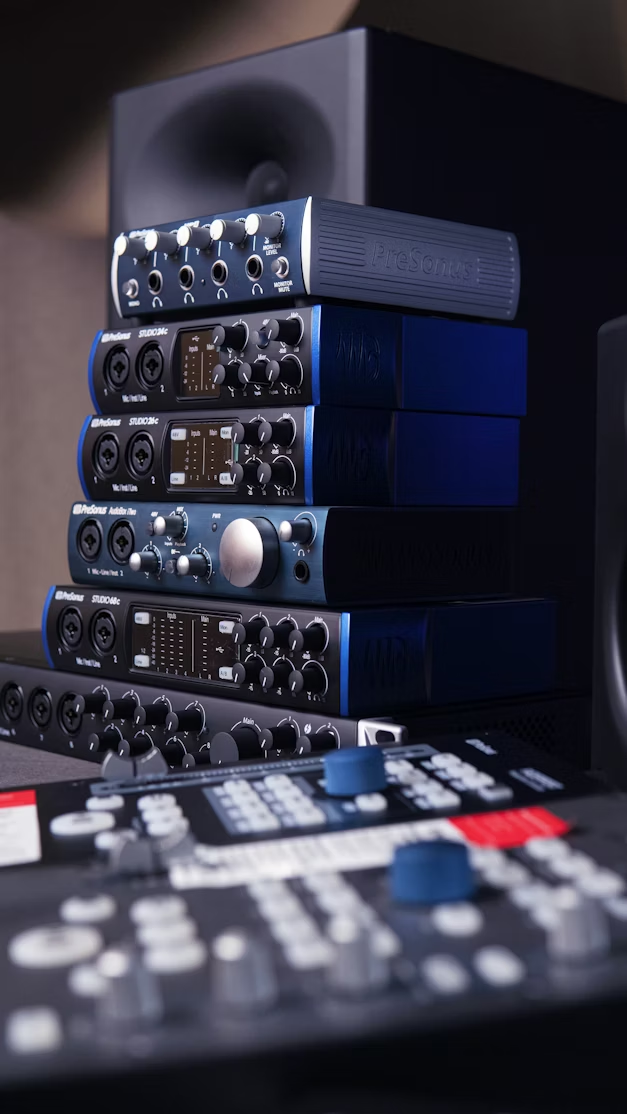
Most desktop DACs provide RCA outputs; pro gear may offer balanced XLR or TRS. Use RCA into the amp’s Line-In or Aux input. If both DAC and amp have balanced connections, use balanced cables for lower noise in longer runs.
Step 4 — Set levels and disable DSP on the source
Keep the source volume at 75–100% (or “fixed” output) and control level from the amplifier. Disable any software EQ, loudness, or enhancements on the source to avoid clipping and double-processing.
</